How to Fix “PST File Too Large” Error in Outlook Easily


Summary: In this article, we will explain how to fix “PST file too large” error in a few clicks using some effective methods, including both manual and advanced solutions.
Personal folders (.pst) and offline Outlook data files (.ost) in Microsoft Outlook 2010 and Outlook 2013 are automatically saved in Unicode format. The total size of the PST and OST files is subject to the predetermined restriction of 50 GB. Even Outlook 2003 and Outlook 2007 have much less stringent restrictions on the Unicode.pst and OST files than this.
What Causes Outlook Data File Too Large Issue?
Before jumping into solutions, it is completely necessary to know the reason behind the problem. Here are some common reasons mentioned below:
- Storing hundreds of thousands of emails in our mailbox over time increases the PST file size.
- Large attachments like documents and images attached to our email also tend to increase the size of the data file.
- There is also a reason, as older editions of Outlook have less storage capacity.
- Even after deleting the emails, someone forgot to delete them from the junk tab or the deleted items folder.
The above possible reasons are likely to occur in the Outlook file too large error.
Methods for Handling PST File Too Large Error Manually
To manage those PSTs in your Inbox that are larger than the set size, the following tasks are available:
- Separate Data File
- Shrink the MS Outlook PST File
- Eliminate Redundant Data
- Archive Previous Emails
Let’s understand them one by one with explanation.
#1 Separation of the File
Split a large PST file into two or more files. Regretfully, Outlook lacks a built-in tool or feature that would allow it to split a large file. However, PST files can be reduced in size using Outlook’s “Archive” or “Import/Export” features. Instead of splitting the PST file, these methods transfer mailbox data among PST files.
#2 Shrink PST Data Files
Use the “Compact Now” option in Outlook 2013 and all the later versions of Outlook to remove the excess white space occupied by the deleted data. It can help you shrink down the size of your huge file. Outlook automatically compacts files when there is more than 20% of available space remaining. The PST file can also manually compressed by following the instructions listed below.
- Go to File > Account Settings > Account Settings in Outlook.
- Select the Data Files tab in the Account Settings window, then click the .pst file that needs to be compressed.
- Now, you can click Settings.
- Click Compact Now in the Outlook Data File box, then select OK.
#3 Eliminate Duplicate Data from PST File
PST file too large error is also caused by a large number of duplicate emails. Then, eliminating duplicate emails might assist in fixing the problem. Nevertheless, several factors, such as improperly configured rules, brief Send/Receive intervals, configured mailboxes, miscount setup, usage of unaffiliated anti-virus software, etc., can result in duplicate emails. To get rid of duplicate emails, you must deal with the root of the issue.
#4 Archive Previous Emails
One of the best ways to handle big PST files is to archive emails. It entails transferring older PST files to an archive folder so you can view them later. You can minimize the size of the primary PST file by archiving the emails in Microsoft Outlook.
This facilitates mailbox organization in Microsoft Outlook. Outlook from Microsoft comes with an archiving feature. To maintain the suggested restrictions on the size of your primary PST file, you can also turn on auto-archiving.
PST File Too Large Error can be Solve by Following the Given Steps:
- Select File > Info > Account Settings > Account Settings. The Account Settings window will open.
- Select the Data File tab.
- Click the Add button. The New Outlook Data File dialog box will open.
- Select a location and enter the file name for the Outlook data. Press OK.
- After shutting down the window, transfer the previous emails from your mail folders to this fresh PST file.
- Right-click on the archive and select New Folder to accomplish this. Give this folder any name you choose.
- Then, with the CTRL key held (or the Shift key held and the down arrow key used for multiple choices), choose the mail items from your primary mail folders.
- After making the selection, right-click on the mail items you have chosen.
- Select the folder you created in the archived PST file by choosing Move.
As a result, the size of the primary file will be decreased by moving the mail items from the main PST files to the archive file.
Also Read: How to Open PST File Without Outlook
Limitations of Using Manual Solutions
- Finding different solutions to resolve various Outlook issues requires time and effort.
- Implementing different solutions to deal with oversized PST files, like splitting, compacting, and removing duplicate data, can be lengthy.
- The Inbox Repair tool may fail to repair an oversized PST file in case of severe corruption.
- It stores all the user data in OST and PST file formats. This continuously increases the size of the Outlook PST file is also a problem for the user.
- There is no guarantee of data security and integrity.
Secure Method to Fix PST File Too Large to Open Issue
We suggest utilizing the SysTools Split PST Tool, the greatest and most reliable option, to get beyond all restrictions and simplify this Outlook files that is too large to access. The program provides four options size, date, year, and folder for severing Outlook PST files. It can simply split huge PST file to the desired size in MB or GB because it has no file size constraints. To divide large files, the program supports both ANSI and UNICODE PST files.
Steps to Make Large Outlook Data Files Smaller
- Download and install the program into your computer.
- Now, Add the PST files, and then click on the Next button.
- Go to the Split by Size menu. to minimize the massive Outlook data file size.
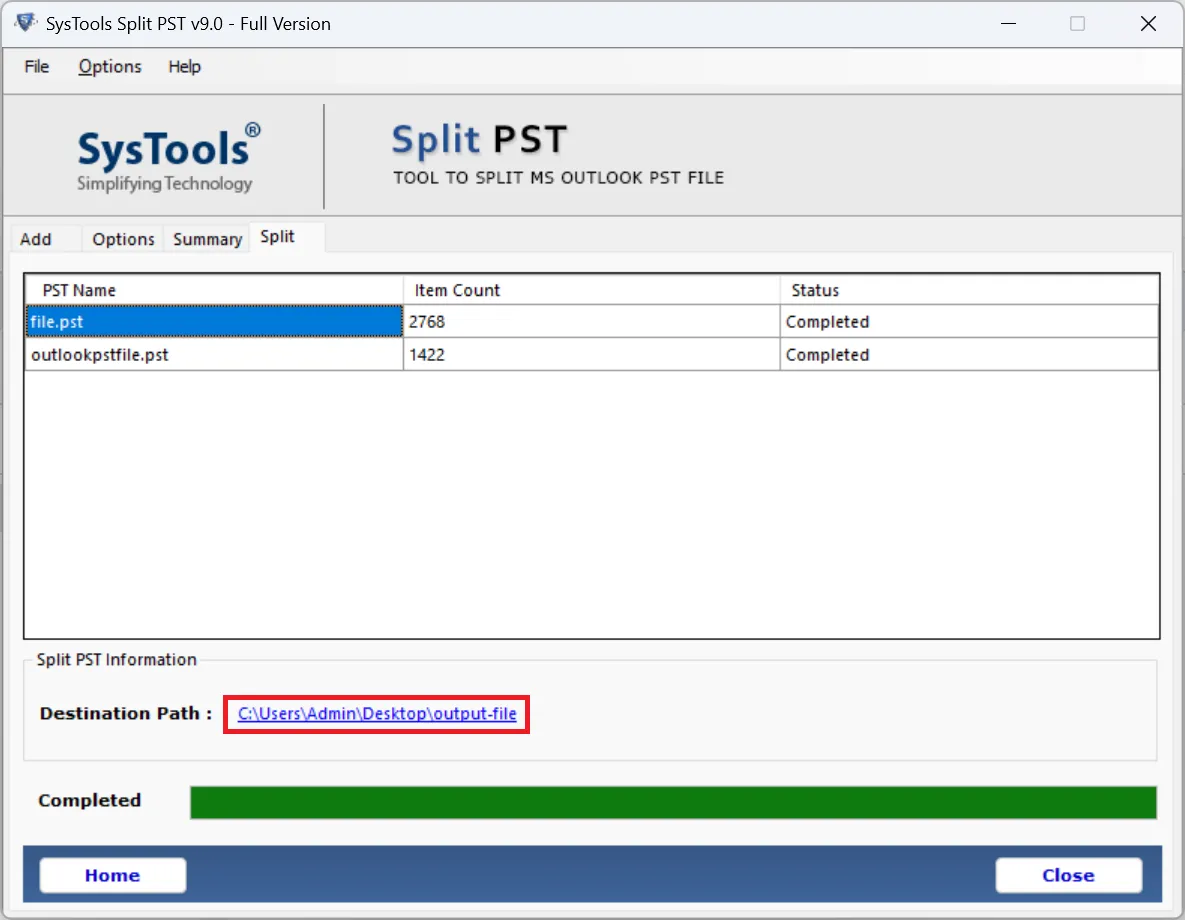
- The “Outlook PST file too large to open” error can be simply fixed by using the program, which displays all split information.


Conclusion
The simplest technique to get around data corruption if your Outlook data file too large to open is to make them smaller. Here, we covered both the expert and manual methods to resolve PST file too large error quickly. Because of the limits of the manual solution, we strongly advise using professional software. Get the tool for free and evaluate its effectiveness.


