How to Merge Two PST Files Into One Outlook Data File? Easy Guide


Are you looking for reliable approach to merge two PST files without any duplicates? If so, then this blog will discuss all smart ways to combine multiple PST files into one using MS Outlook as manual method and professional software for quick and accurate results.
When users try to join PST files together on their own, they end up creating Outlook archives or configuring multiple Outlook profiles. However, changing to different accounts not only creates unwanted delays in email management but also increases risk of losing important email conversations. Thus, if you are in search of any automated solution, then you are on right page.
In this article, you will get to know how to merge 2 PST files into one using some proven ways which will help you in future and enhance your Outlook performance. Let’s get started with this blog.
Direct Solution to Merge Two Outlook Data Files Into One
If you want to combine 2 PST files into one, then we recommend using SysTools Outlook PST Merge Software. This dedicated tool allows users to merge multiple Outlook PST files into one without losing data structure. Moreover, this professional software is completely offline desktop based utility that can run without requiring internet connectivity.
One can also skip duplicates from PST files using its advanced option. It offers many various filters that can help users to join PST files easily and quickly. To know more, users can download its free trial version available for all.
Why Merge Two PST Files into One?
Now, users have lot of Outlook data files that are difficult to manage and cause problems in Outlook. Merging data files can be done for many reasons, such as:
- Users have several Outlook accounts and only want to access one account with all important data. This time, he/she needs to combine all the PST data files into one.
- Users regularly back up their data for security reasons, so they have multiple PSTs from different Outlook versions, including ANSI-type. Now users want to combine ANSI PST with the UNICODE and create a single UNICODE type PST that works with the latest versions of Outlook.
- Another important aspect of merging is keeping Outlook performing well and avoiding data corruption issues.
- In many cases, users need to share PST file with someone. However, it becomes difficult when users have multiple files. Thus, to solve this problem, users have to combine all Outlook data files into single PST.
Manual Process to Combine Two PST Files Into One in MS Outlook
Before starting manual process, it is important to know that Outlook does not provide any built in option or features to merge multiple PST files into one. However, user have to apply indirect steps that will help you to perform this task. So, follow steps listed below to start process:
Step-1: Make A New PST File
Pre-Requisites: Active Outlook with configured profile required to complete the merge process.
- Open your Outlook application.
- Click on New Items.
- Select More Items.
- Now choose Outlook Data File.
- Next, select the location to save the new PST file.
- Also, name the file and click OK.

Step-2: Import Old PST to New File
Here, you need to import your old PST to the newly created PST file to solve the query can you merge two PST files into one?
- Again open Outlook application and navigate to File tab.
- Click on Open & Export and select the Import/Export option.
- In the Import/Export window, choose Import from another program or file.
- Click Next and select Outlook Data File.
- Again click Next and click Browse to select the PST you want to import.
- Choose required option according to needs under Options.
- Now, select folder to import from and include subfolder if needed.
- Click Next button and import process will start immediately to combine two PST files.


Note: Microsoft Outlook only allows users to import only one PST file at once. So in such cases, to merge two Outlook data files, users have to import another Outlook PST data file again to start combining process.
Although merging Outlook files using manual method can be frustrating, as it is very time taking process, as users have to join them manually. Furthermore, it involves high risk of losing data integrity. Therefore, it is advised to use expert certified solution. Let’s quickly walk through an explanation of dedicated software.
How to Merge 2 PST Files into One using Professional Method?
If you are dealing with multiple Outlook data files and want to combine them into single file. Instead of using manual method, we recommend using best and reliable software by SysTools, which allows you to combine multiple PST files into one without any file limitation.
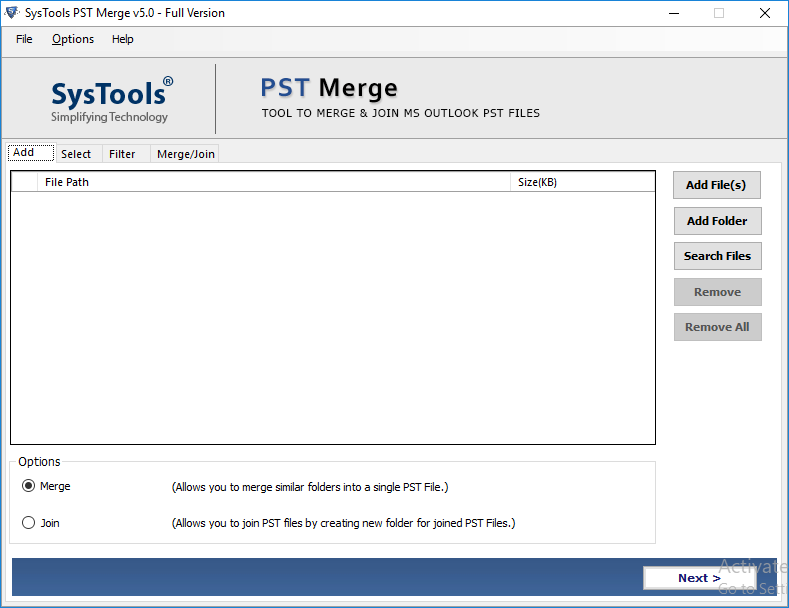
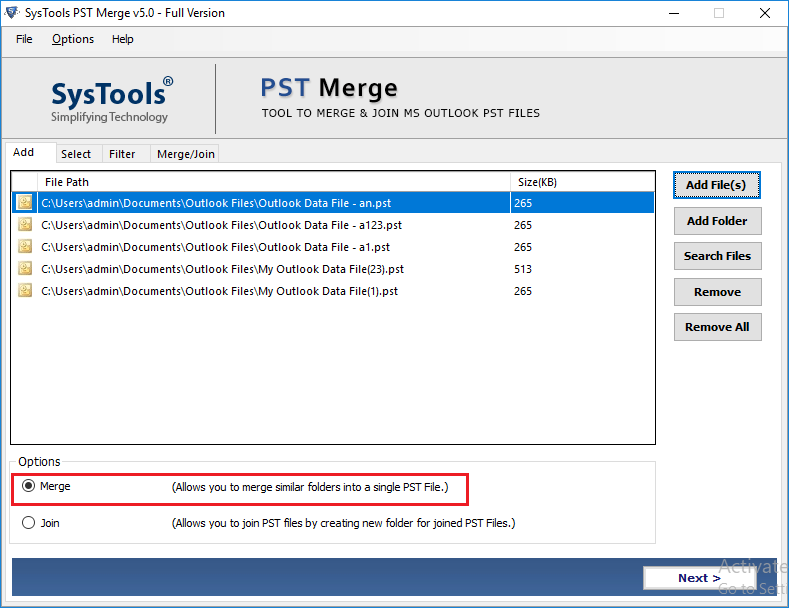
This advanced utility offers two options, i.e., Join or Merge.
- Join Option: It permits users to join multiple PST files by creating new folder in output PST file.
- Merge Option: This feature allows users to merge two Outlook data files into same folder of output PST file.
Additionally, this is user friendly software that allows both casual and professional users to run this tool without any challenge, as it comes with simple and easy to operate interface. So, if anyone wants to combine 2 PST files without MS Outlook, then download this software and try its demo version for free. Now, let’s know its working to explore its features.
Step Guide to Combine Multiple PST Files into One PST
Users must follow these steps listed below, as it will help them to understand how to merge two PST files easily.
- After downloading the software, kindly launch it on your system to combine two PST files into one.
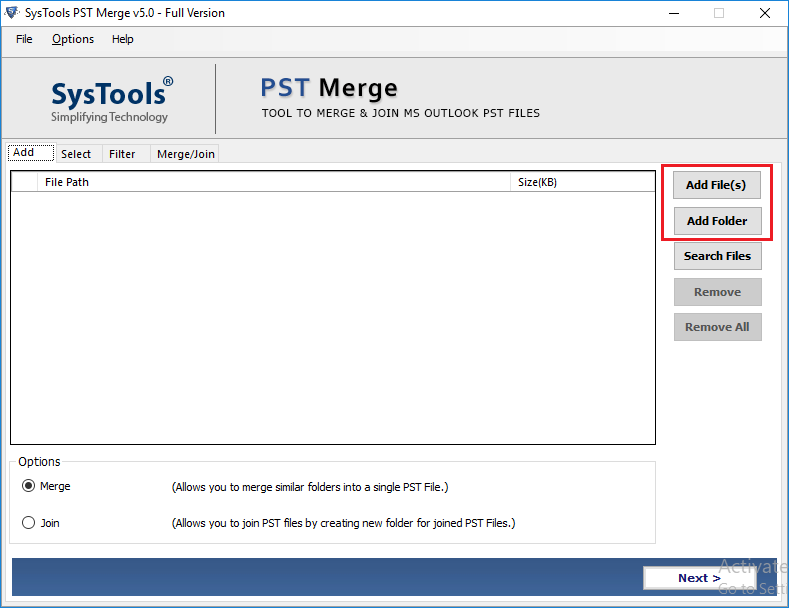
- Tap Add files and folder feature to upload multiple Outlook PST files from your system.
- Choose Merge or Join PST files together option that allows you to combine similar files into PST file.
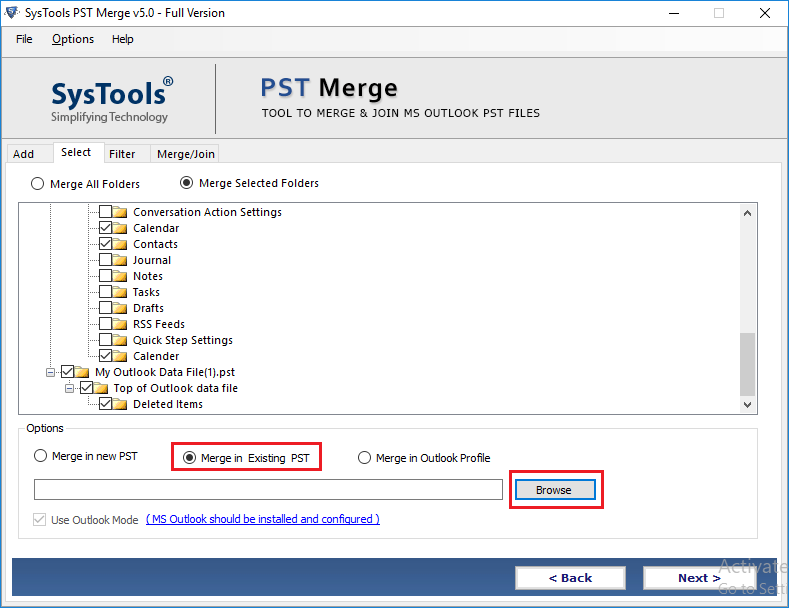
- Select Outlook folder and then choose option as New PST, Existing PST, or Outlook Profile.
- Choose item type and select Advanced options according to your choice.
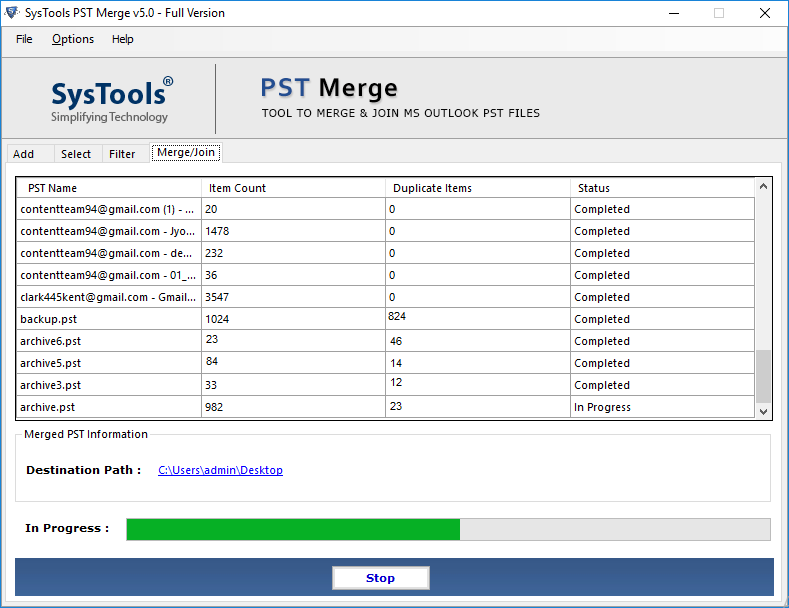
- Click Next button to start merge multiple PST files into new PST file without any restrictions.

Conclusion
In this article, we have discussed how to merge two PST files using smart approaches that include both manual and automated solutions. Users just need to opt for advanced software, as MS Outlook does not offer any built in feature to combine two PST files into one. However, for large Outlook files, manual methods can be very tedious and problematic. Therefore, we recommend using professional tool mentioned above, which helps you merge 2 PST files into one without any duplicates. Additionally, if you are still facing problem in solving error, then you can contact our support team via 24/7 live chat for effective solution.
Read More: 5 Most Common Outlook Errors
FAQs on Join PST Files Together
Q.1 Can Two PST Files be Merged?
A. Yes, users can effectively combine 2 PST files into one data file by using MS Outlook by making blank PST and then import/export data from older file; else use advanced software by SysTools.
Q.2 Can I Merge Two Outlook Folders Together?
A. Yes, you can join Outlook folders only if using trusted and reliable third party utility, as Outlook itself does not offer any option to combine PST folders.
Q.3 How to Combine 2 PST Files into 1 File Easily?
A. To merge two PST files into one, users have to make new file > open Import & Export > Import/Export. But it can be very time taking for multiple PST files. In such cases, we recommend using SysTools’ Software.


